Cleaning Your PC Without Damaging It: The Complete Guide
We spend hours on them every day, yet our computers are often real breeding grounds for dust and bacteria. With machines becoming thinner and more compact, a bad accumulation of dirt can quickly clog the ventilation and cause destructive overheating. However, cleaning an electronic device shouldn't be improvised: one wrong move, an unsuited product, and a breakdown is guaranteed. Discover our step-by-step guide to bringing the shine back to your PC safely.
Step 0: The Golden Rule of IT Safety 🛡️
Before bringing any cloth or tool near your machine, turn it off completely, unplug the power cable, and disconnect all USB peripherals.
- Ultimate Prudence: Even if it's an external cleanup, a short circuit or a wrong move can happen. Get into the habit of backing up your data before it's too late so you can work with true peace of mind.
1. The Screen: Say Goodbye to Fingerprints Without Scratching 🖥️
Modern screens (especially matte or OLED displays) have very fragile coatings. NEVER use glass cleaner, paper towels, or household alcohol, or you risk stripping away the protective layer.
- The Method: Use a clean, dry microfiber cloth. If the marks persist, dampen it very slightly with distilled water (never spray directly onto the screen).
- The Environment: Keeping a clean screen is part of the habits for optimizing your must-have accessories to boost your desk setup.
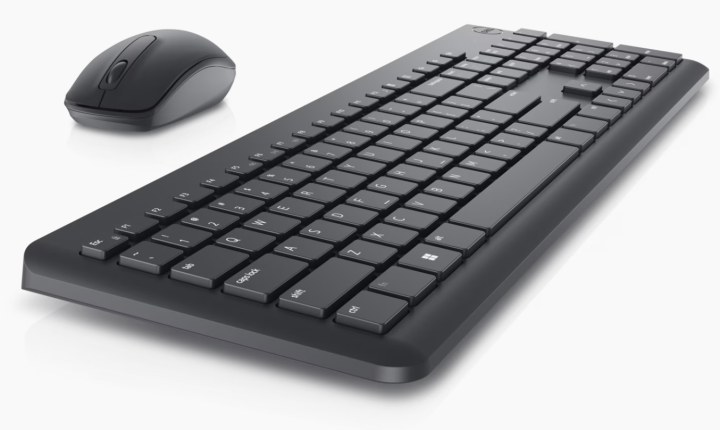
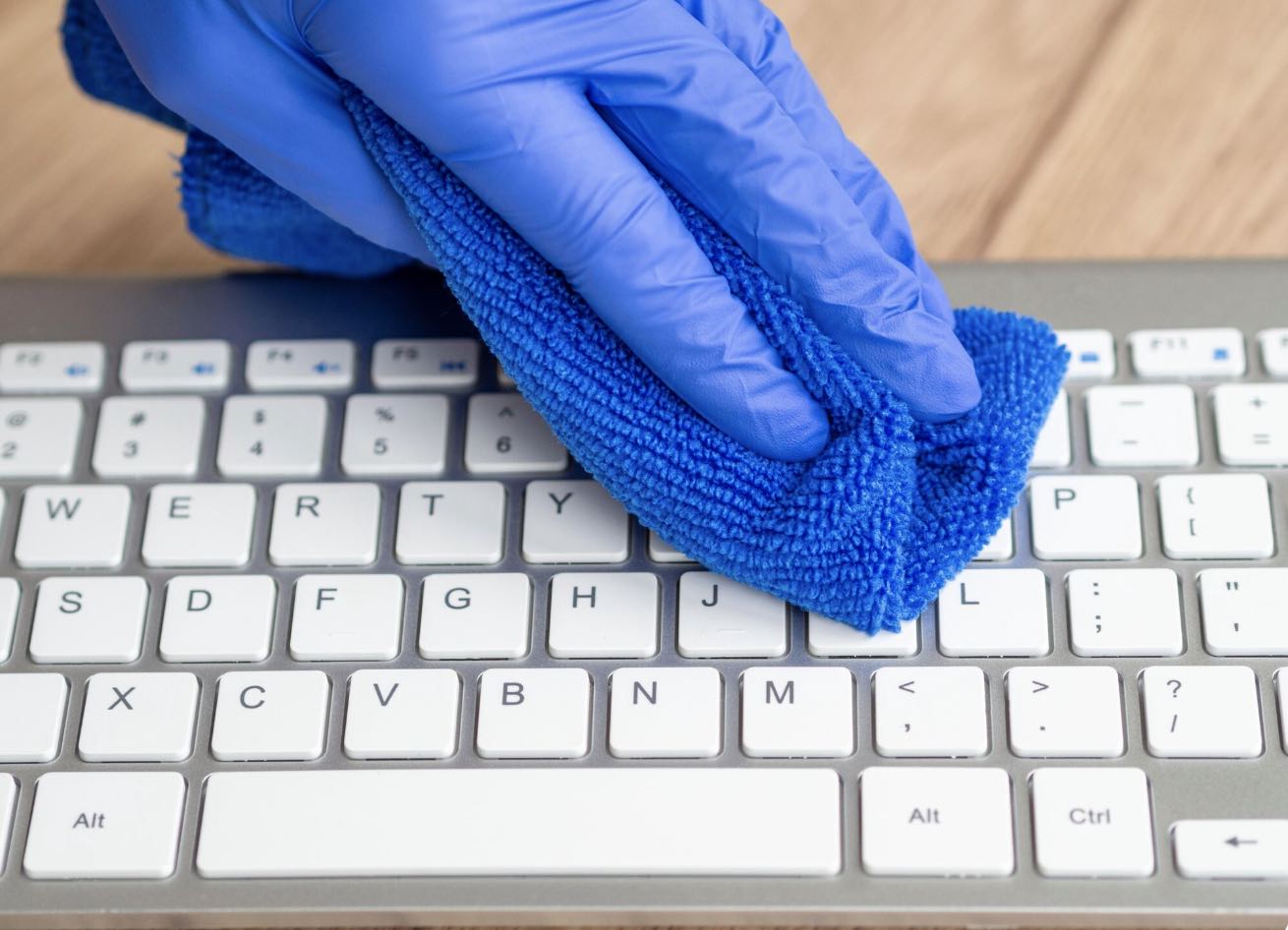
2. The Keyboard and Mouse: Chase Away Hidden Crumbs ⌨️
The keyboard is the area that accumulates the most microscopic debris, sometimes blocking keys from activating properly.
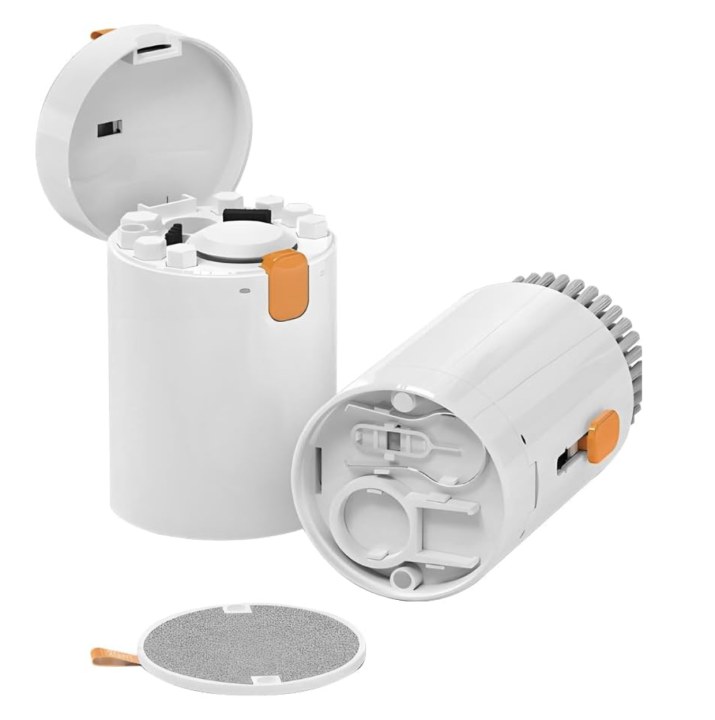
- The Tip: Turn your keyboard (or open laptop) upside down and tap the back gently to shake loose the largest crumbs. Then use a compressed air canister, keeping the can upright, to blow out the residue between the keys.
- Efficiency: A clean keyboard will allow you to regain smooth typing to execute your keyboard shortcuts faster.
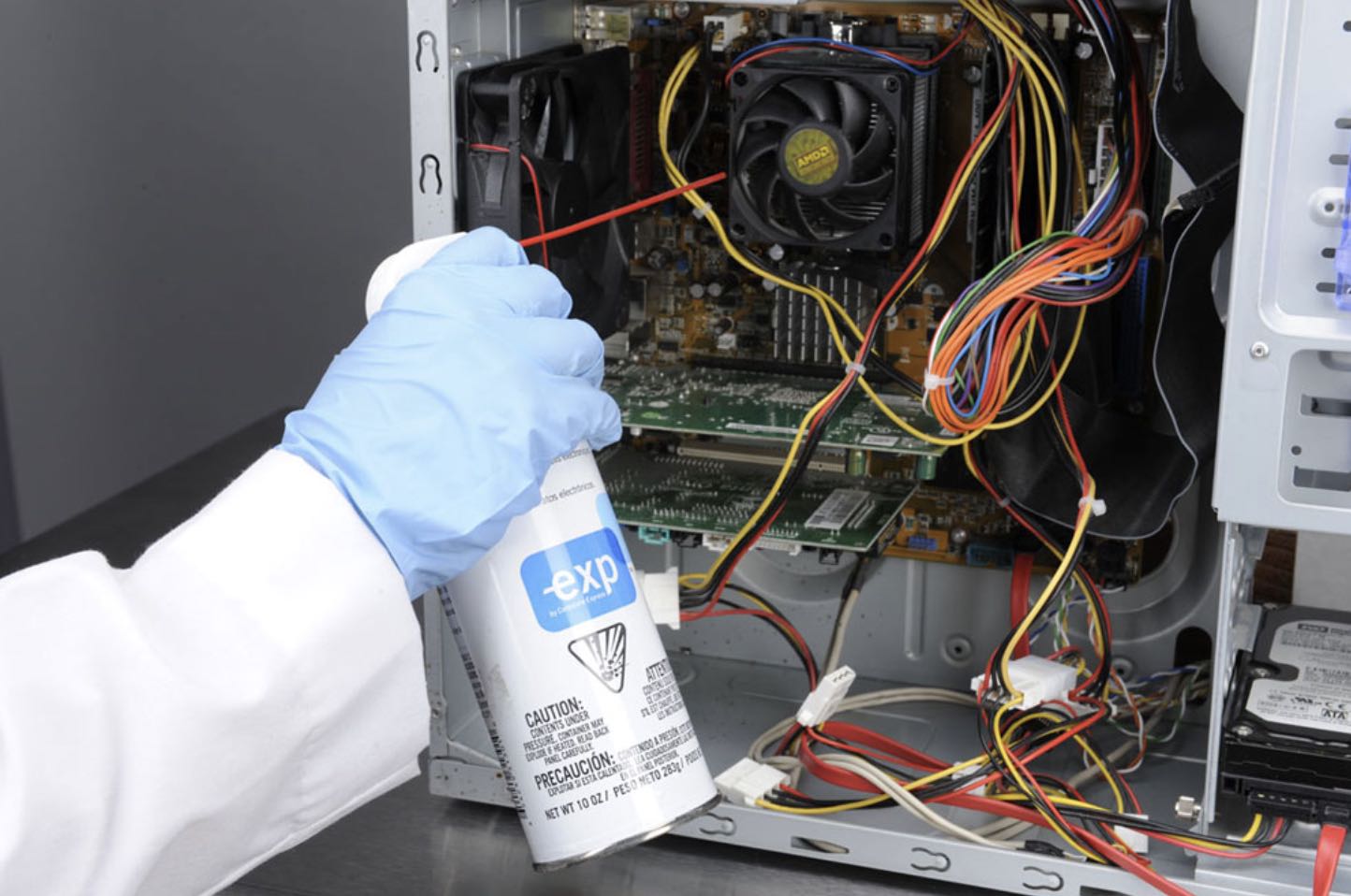
3. Fans and the Inside: The Lungs of Your PC
This is where the survival of your computer hardware is at stake. Dust builds up on the ventilation grilles, forcing fans to run at full speed.
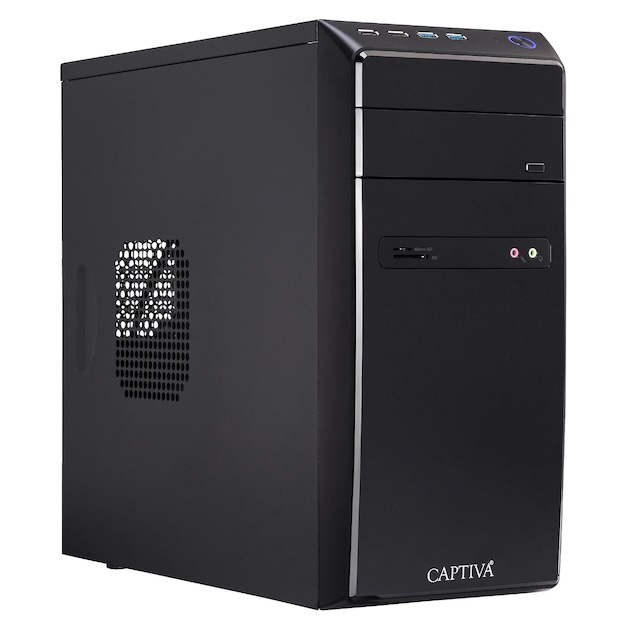
- The Right Move: Using your compressed air canister, apply short bursts through the exhaust grilles. If you open the case of a desktop PC, block the fan blades with a finger before blowing to prevent them from spinning freely and generating static electricity.
- Understanding Your Machine: To identify sensitive areas like the processor heatsink, don't hesitate to reread our complete guide where the PC is explained simply with its essential components.
- Durability: This simple technical action is indispensable to make your computer last longer by preventing premature wear due to heat.
DigitalKif Expertise: A Clean PC Outside... and Inside!
Physical cleaning gives your chassis a second youth, but what about the engine? A computer cluttered with temporary files or useless applications will slow down just as much as a machine full of dust. For a complete deep clean, combine this guide with our 5 tips to clean and boost your PC from a software perspective.
Whether it's designing a high-performing infrastructure for your office technology or maintaining your current IT fleet, DigitalKif stands by your side to maximize your business productivity.
Are your employees complaining about slow or noisy computers? Don't risk damaging your investments with poor maintenance. Contact the DigitalKif team to schedule a professional and secure maintenance service for your equipment!