How to Restore Your Data After a Major Failure: The Survival Guide 🛠️
The screen stays black, your hard drive is making a suspicious grinding noise, or worse, a ransom message appears... The failure has arrived. If you followed our advice and took the time to back up your data before it was too late, take a breath: all is not lost. Restoration is the critical step that transforms a potential catastrophe into a simple technical setback. Here is the roadmap to recovering your files and getting back to business as quickly as possible.
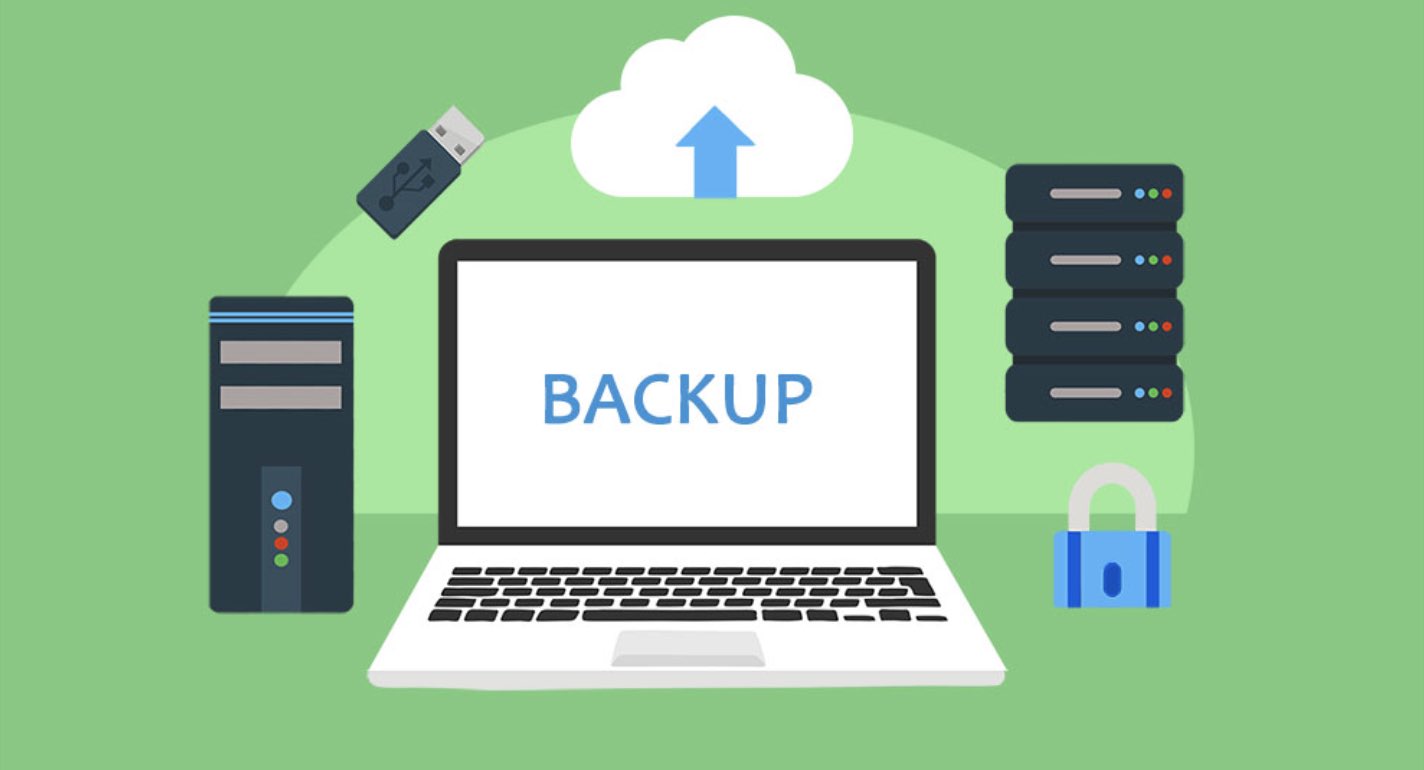
1. Assess the Extent of the Damage
Before hitting the restore button, you must understand why the system failed to avoid corrupting your backups.
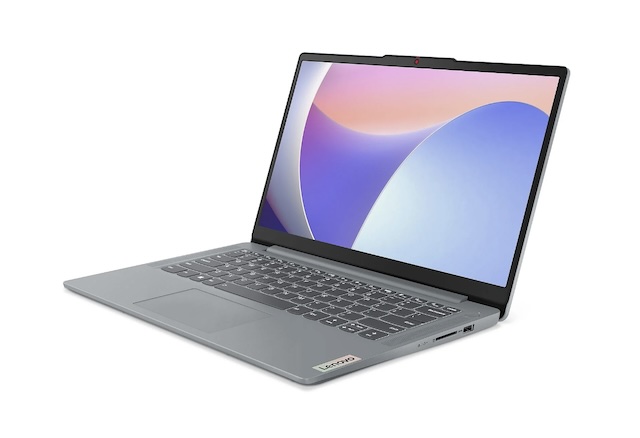
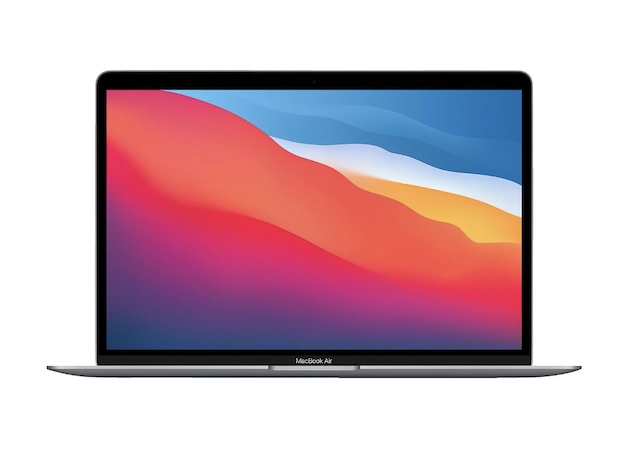
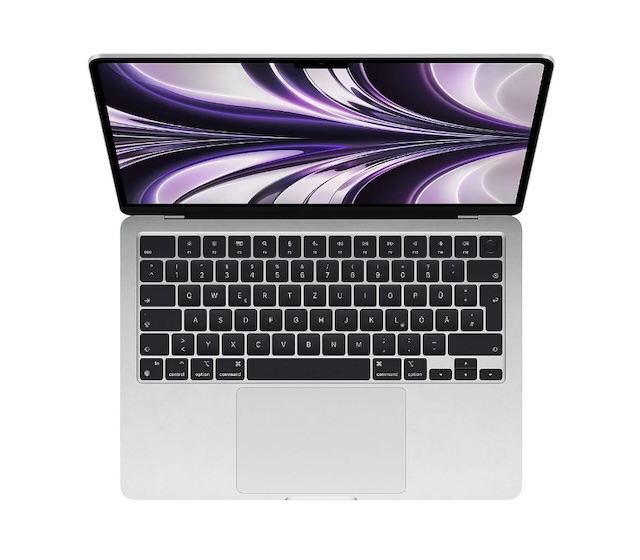
- Hardware Failure: If the computer won't turn on, your data is likely healthy but inaccessible. You may need to choose a new computer or replace the faulty drive.
- Software Failure or Virus: If the system crashes but still powers on, a clean reinstallation is necessary. Warning: if you were the victim of an online scam, ensure the threat is completely removed before reconnecting your backup drives.
2. Restore from the Cloud: The Fastest Solution ☁️
If you use synchronization tools, recovery can be almost instantaneous.
- Reinstalling Agents: Reinstall the Google Drive or OneDrive app on your clean machine. Your files will begin to sync automatically. This is one of the major perks of the ultimate Google Drive tip.
- File Priority: Most cloud services allow you to choose which folders to sync first. Recover your essential work documents first to remain productive while the rest downloads in the background.

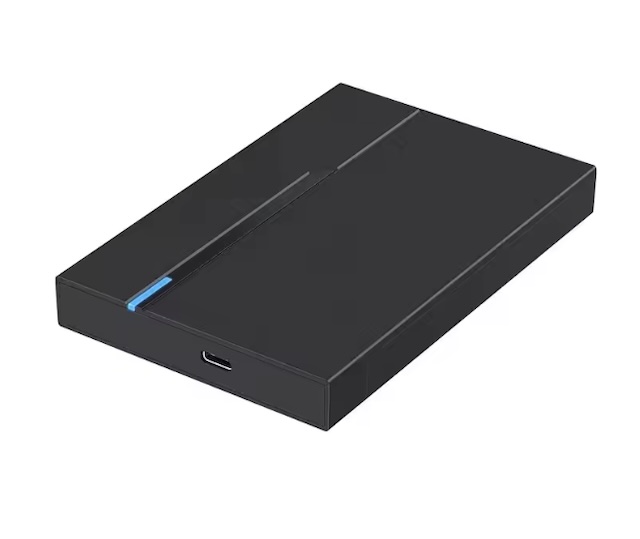
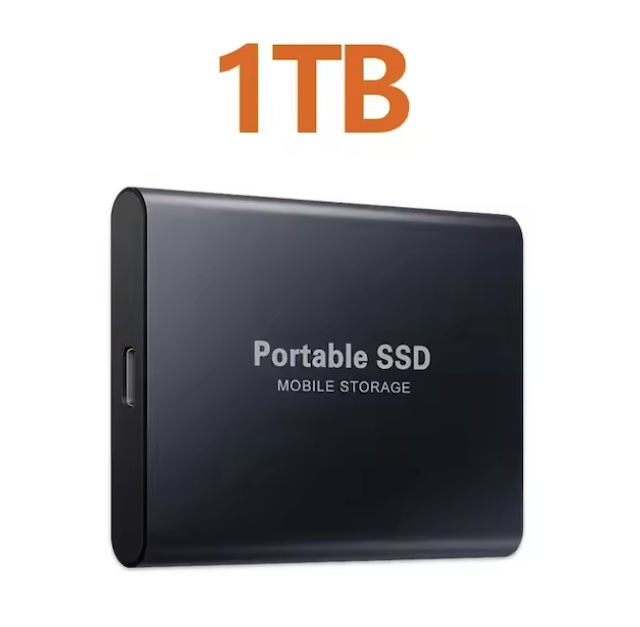
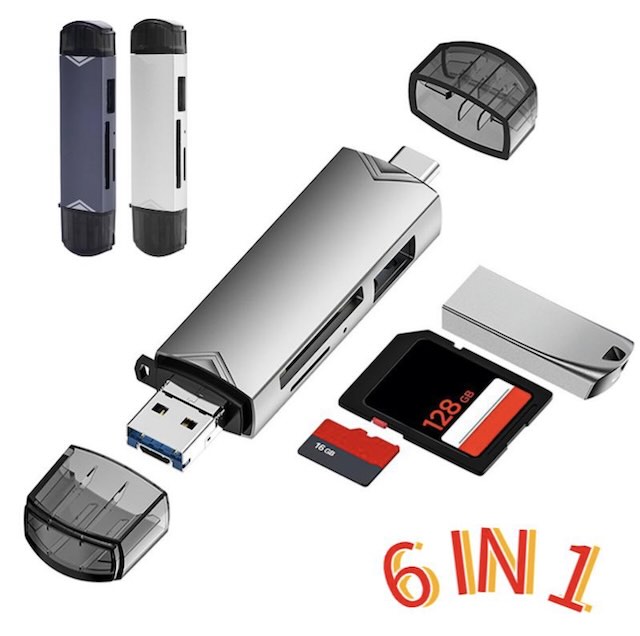
3. Recovery via Physical Media (SSD/NAS) 💾
For large volumes of data or full system backups (disk images).
- Using Native Tools: Use "Time Machine" on macOS or "File History" on Windows. Plug in your storage media and follow the restoration wizard to recover your exact previous environment.
- Precautions: If you are recovering data after an infection, scan your backup with updated antivirus software before copying files onto your new system.
4. Reconfigure Your Workspace
Once the files are back, you need to regain your usual efficiency.
- Apps and Tools: Reinstall your business applications. If you work on the go, make sure to reconfigure your mobile office to maintain permanent access.
- Immediate Optimization: Take advantage of this "fresh" installation to apply our tips for boosting your PC from the get-go and avoid reinstalling bloatware.
- Shortcuts: Don't waste time hunting for your favorite functions—quickly relearn your essential keyboard shortcuts.
DigitalKif Expertise: Your Business Continuity Plan
Data restoration is a high-stress process that leaves no room for improvisation. At DigitalKif, we help professionals and individuals design robust Business Continuity Plans (BCP). Our deep knowledge of office technology allows us to get you back on your feet in record time.
Are you facing data loss or do you want to audit your restoration capacity? Don't stay in a state of uncertainty. Contact the DigitalKif team for expert assistance. We secure your digital future by ensuring that, no matter what happens, your data always makes it back to you!